

Installation
PosterPilot runs as a single Docker container. The same multi-arch image
(amd64 + arm64) runs on a Mac, an Unraid server, or anywhere else Docker
runs.
The official image
Section titled “The official image”The official prebuilt image is published to the GitHub Container Registry:
docker pull ghcr.io/diegopeixoto/posterpilot:latestTags follow the releases; :latest tracks the most recent release. You can pin a
specific version tag instead if you prefer reproducible upgrades.
Volumes and ports
Section titled “Volumes and ports”The volumes that matter:
/data— persistent app state: the SQLite database, saved settings, encrypted-credential key, artwork snapshots/revisions, application backups, thumbnail cache, and rotating log file (/data/logs/posterpilot.log). Keep this on a mounted volume so state survives container updates; the log file lives inside/data, so no extra volume is needed for it./kometa— mount your Kometa assets/config directory here so the exported YAML lands where Kometa reads it. Only needed if you use the Kometa export.- Kometa’s config dir (optional) — to manage Kometa’s own
config.ymlwith the Kometa manager, mount that directory read/write and pointKOMETA_CONFIG_PATHat theconfig.ymlinside it (e.g./config/config.yml). PosterPilot writesposterpilot-movies.ymlandposterpilot-shows.ymlinto that same physical directory, so this one mount is all the manager needs.KOMETA_METADATA_PATH_PREFIXseparately describes the references visible to Kometa at runtime. See Mount Kometa’s config for config sync.
The container listens on port 3000 by default (configurable via the PORT
environment variable). Publish it to a host port to reach the UI.
Encryption key for stored secrets
Section titled “Encryption key for stored secrets”PosterPilot encrypts secret settings (media-server tokens and provider API keys)
at rest. By default it auto-generates an instance key at data/.app-key on first
run — zero setup required. Because that key lives inside the /data volume,
keeping /data on persistent, backed-up storage keeps your secrets decryptable
across container updates.
Optionally set the APP_SECRET environment variable to derive the key from a
value you control instead. Use it when you want secrets to stay portable if the
container (and its data/.app-key) is recreated. If you do not set APP_SECRET, treat data/.app-key
as part of your backups — losing it means re-entering every saved credential. See
Configuration → Secrets and encryption
for the full behavior.
Back up before upgrading
Section titled “Back up before upgrading”Before changing image versions, let mutating jobs finish and back up the complete
/data volume. If the installed version includes Settings → Backup & restore,
create and validate a manual application backup too. Keep the same APP_SECRET or
the copied .app-key available after the upgrade.
Upgrades run additive database migrations at startup. Existing one-server installations are migrated in place to a protected named Default server without discarding cached items or history. Follow the multi-server migration checklist for post-upgrade validation and rollback guidance.
Mount Kometa’s config for config sync
Section titled “Mount Kometa’s config for config sync”The Kometa manager lets PosterPilot manage
Kometa’s own config.yml. To use it, that file has to be reachable and writable
from inside the PosterPilot container:
- Mount Kometa’s config directory read/write. Bind-mount the host directory
that holds Kometa’s
config.ymlinto the container — for example at/config. Bind mounts are read/write by default; do not mark it:ro, because the manager writes the file and leaves a timestamped backup beside it. - Point
KOMETA_CONFIG_PATHat the mounted file — e.g./config/config.yml. Leaving it unset keeps the Kometa manager off.
That single physical directory is all the manager needs: PosterPilot writes the
two typed metadata files beside config.yml. Their file: values are a separate
concern and must match Kometa’s runtime view. The default
KOMETA_METADATA_PATH_PREFIX=config emits
config/posterpilot-movies.yml and config/posterpilot-shows.yml; use . only
if bare basenames resolve correctly inside Kometa. Do not put a host path
or an absolute container path in this prefix. This is in addition to /data and
the /kometa assets mount. If Kometa keeps config and assets in one host directory,
you can mount that directory at both locations; the physical paths may differ
between containers as long as the generated file: references match Kometa’s view.
Docker Compose (macOS)
Section titled “Docker Compose (macOS)”Create a docker-compose.yml:
services: posterpilot: image: ghcr.io/diegopeixoto/posterpilot:latest container_name: posterpilot ports: - '3000:3000' healthcheck: test: [ 'CMD', 'bun', '-e', "fetch('http://localhost:3000/api/health').then(r=>process.exit(r.ok?0:1)).catch(()=>process.exit(1))" ] interval: 30s timeout: 5s retries: 3 start_period: 20s environment: PORT: '3000' DATABASE_URL: file:/data/posterpilot.db KOMETA_ASSETS_DIR: /kometa # Optional — you can also set these in the in-app Settings page instead: PLEX_URL: ${PLEX_URL:-} PLEX_TOKEN: ${PLEX_TOKEN:-} TMDB_KEY: ${TMDB_KEY:-} # Optional — derive the secrets encryption key (else auto-generated at data/.app-key): # APP_SECRET: ${APP_SECRET:-} # Optional — manage Kometa's own config.yml (Kometa manager): # KOMETA_CONFIG_PATH: /config/config.yml # KOMETA_METADATA_PATH_PREFIX: config # Kometa runtime view, not a physical path # KOMETA_SERVER_INSTANCE_ID: legacy-default volumes: # Persistent app state (SQLite db + settings + history). - ./data:/data # Mount your Kometa assets/config dir here so exported YAML is picked up. - ./data/kometa:/kometa # Optional — Kometa's config dir (read/write) for the Kometa manager. # - ./data/kometa/config:/config restart: unless-stoppedThen start it:
docker compose up -d# UI at http://localhost:3000The bundled docker-compose.yml in the repository is the same shape and includes
a build: . option if you would rather build the image locally instead of
pulling it:
docker compose up -d --buildUnraid (Community Apps)
Section titled “Unraid (Community Apps)”PosterPilot is listed on the Unraid Community Apps store. Open the Apps tab, search for PosterPilot, and click Install.
Prefer to add it by hand? The repository also ships the template at
unraid/posterpilot.xml. In the Unraid UI go to Docker → Add Container and paste
this into the Template field:
https://raw.githubusercontent.com/diegopeixoto/posterpilot/main/unraid/posterpilot.xmlIt pre-fills the GHCR image, the WebUI port, the /data and /kometa volumes, and
optional credential fields (Plex / Jellyfin / Emby, TMDB, Fanart.tv, language) —
all of which you can also configure later in the Settings page.
To also use the Kometa manager, add a path
mapping for Kometa’s config directory (read/write) and set KOMETA_CONFIG_PATH to
the mounted config.yml — the same extra mount shown in the Compose examples
below.
Docker Compose (Unraid)
Section titled “Docker Compose (Unraid)”Prefer Compose? Point the volumes at your appdata share — in particular, point the
Kometa volume at your existing Kometa config directory so exported YAML lands
where Kometa already reads it:
services: posterpilot: image: ghcr.io/diegopeixoto/posterpilot:latest container_name: posterpilot ports: - '3000:3000' environment: PORT: '3000' DATABASE_URL: file:/data/posterpilot.db KOMETA_ASSETS_DIR: /kometa # Optional — or configure these in the Settings page: PLEX_URL: ${PLEX_URL:-} PLEX_TOKEN: ${PLEX_TOKEN:-} TMDB_KEY: ${TMDB_KEY:-} # Optional — derive the secrets encryption key (else auto-generated at data/.app-key): # APP_SECRET: ${APP_SECRET:-} # Optional — manage Kometa's own config.yml (Kometa manager): # KOMETA_CONFIG_PATH: /config/config.yml # KOMETA_METADATA_PATH_PREFIX: config # Kometa runtime view, not a physical path # KOMETA_SERVER_INSTANCE_ID: legacy-default volumes: - /mnt/user/appdata/posterpilot:/data - /mnt/user/appdata/kometa/config:/kometa # Optional — Kometa's config dir (read/write) for the Kometa manager. # - /mnt/user/appdata/kometa/config:/config restart: unless-stoppedSet PLEX_URL / PLEX_TOKEN / TMDB_KEY in the container’s environment, or leave
them blank and configure everything via the Settings page, then browse to the
container on port 3000.
First run
Section titled “First run”- Start the container and open
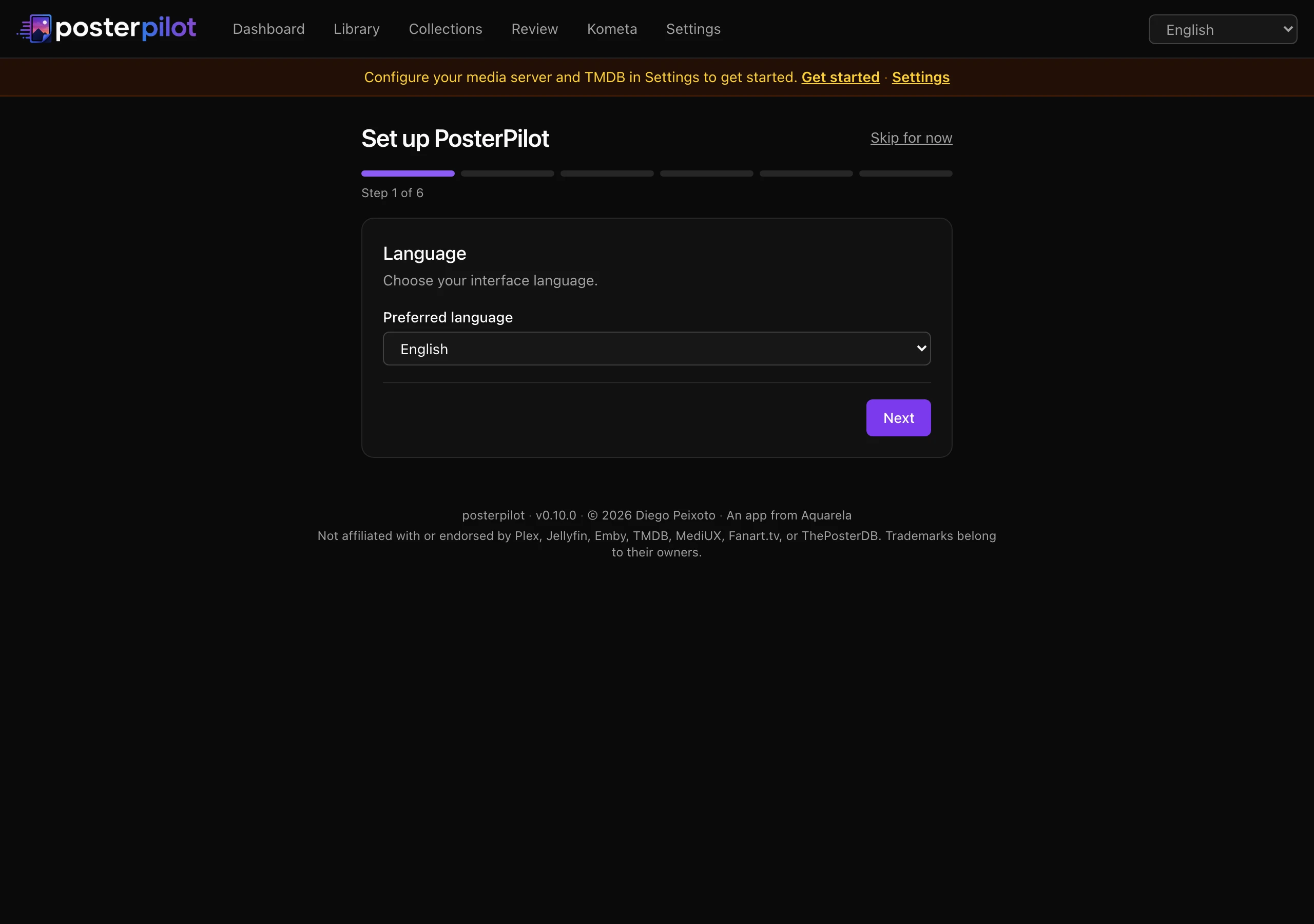
http://<host>:3000(e.g.http://localhost:3000). - On first run nothing is synced yet. A banner points you at the first-install
wizard at
/setup, which walks you through six steps: choose a language, connect a media server, add a TMDB key, enable artwork providers, pick which libraries to sync, and run the first sync. For Plex the wizard includes a PIN login and connection discovery so you never have to paste a token or URL. The wizard is skippable — you can configure everything in Settings instead. Each step advances only after the server accepts it; an inline error keeps the current step. The final step follows the first sync until a terminal result and offers failure detail/retry instead of reporting completion early. - If you set credentials via environment variables, they appear already configured and locked from editing in both the wizard and Settings (see Configuration).
- Once synced, start finding and applying covers (see Usage).
Restoring an application backup
Section titled “Restoring an application backup”Use Settings → Backup & restore rather than replacing a live SQLite file. The restore preview validates checksums, database integrity, schema, disk space, paths, and encryption-key compatibility. Confirmation blocks new mutations, drains active work, creates a protected safety backup, and prepares a restart marker. Restart the container for replacement to occur before libsql opens; then inspect the readiness report. See Automation and recovery.
Health check
Section titled “Health check”The app exposes an unauthenticated GET /api/health that returns
{ "status": "ok", "version": "x.y.z" } with HTTP 200 — use it as a container
health probe (the bundled docker-compose.yml already does):
curl -s http://localhost:3000/api/health/api/health is a lightweight liveness probe and intentionally performs no
database I/O. Use GET /api/ready as a readiness probe when the orchestrator
must confirm that SQLite can serve a bounded query. It returns HTTP 503 with a
stable, sanitized reason when the database query fails or times out:
curl -fsS http://localhost:3000/api/readyPosterPilot is an independent project, not affiliated with or endorsed by Plex, Jellyfin, Emby, MediUX, Fanart.tv, TMDB, ThePosterDB, or Kometa. Trademarks belong to their respective owners. This product uses the TMDB API but is not endorsed or certified by TMDB.