

Usage
This page walks through the day-to-day workflow once PosterPilot is installed and configured.
First-install wizard
Section titled “First-install wizard”On a fresh install a banner points you at the wizard at /setup. It walks you
through six steps in order, persisting each as you go:
- Language — pick the UI locale.
- Media server — choose Plex, Jellyfin, or Emby. For Plex you can sign in with a PIN (PosterPilot shows a code and an authorization link, then stores the acquired token for you) and pick a discovered local/remote connection. Jellyfin and Emby take a server URL and let you sign in with your username and password — PosterPilot exchanges them for an access token, so you never have to hunt down an API key (the password is used only for that one request and is never stored; pasting a key by hand stays available as a fallback). A Test button verifies the connection.
- TMDB — paste a TMDB API key (a link to TMDB’s API settings is provided).
- Providers — toggle the artwork providers (MediUX, TMDB, Fanart.tv, ThePosterDB) and enter a Fanart.tv key if you use it.
- Libraries — once connected, the wizard lists your movie and show libraries; tick the ones to sync (all selected by default, which also picks up libraries you add later).
- First sync — run the initial sync and follow its live status to a terminal result. Failure detail and retry remain visible; setup does not claim completion merely because the job was accepted.
The wizard is skippable at any point (the Skip link goes straight to the Dashboard) — everything it covers is also available in Settings.
Sync a library
Section titled “Sync a library”A sync pulls your movie and show libraries from the active named media server into PosterPilot’s local cache and resolves each title to a TMDB id so artwork providers can be queried.
- Make sure the active server type’s credentials and a TMDB key are configured. A sync is blocked (with a clear message about what is missing) if they are not.
- Optionally narrow which sections are synced from the Libraries to sync
checklist (in the wizard or Settings → Media server) or with
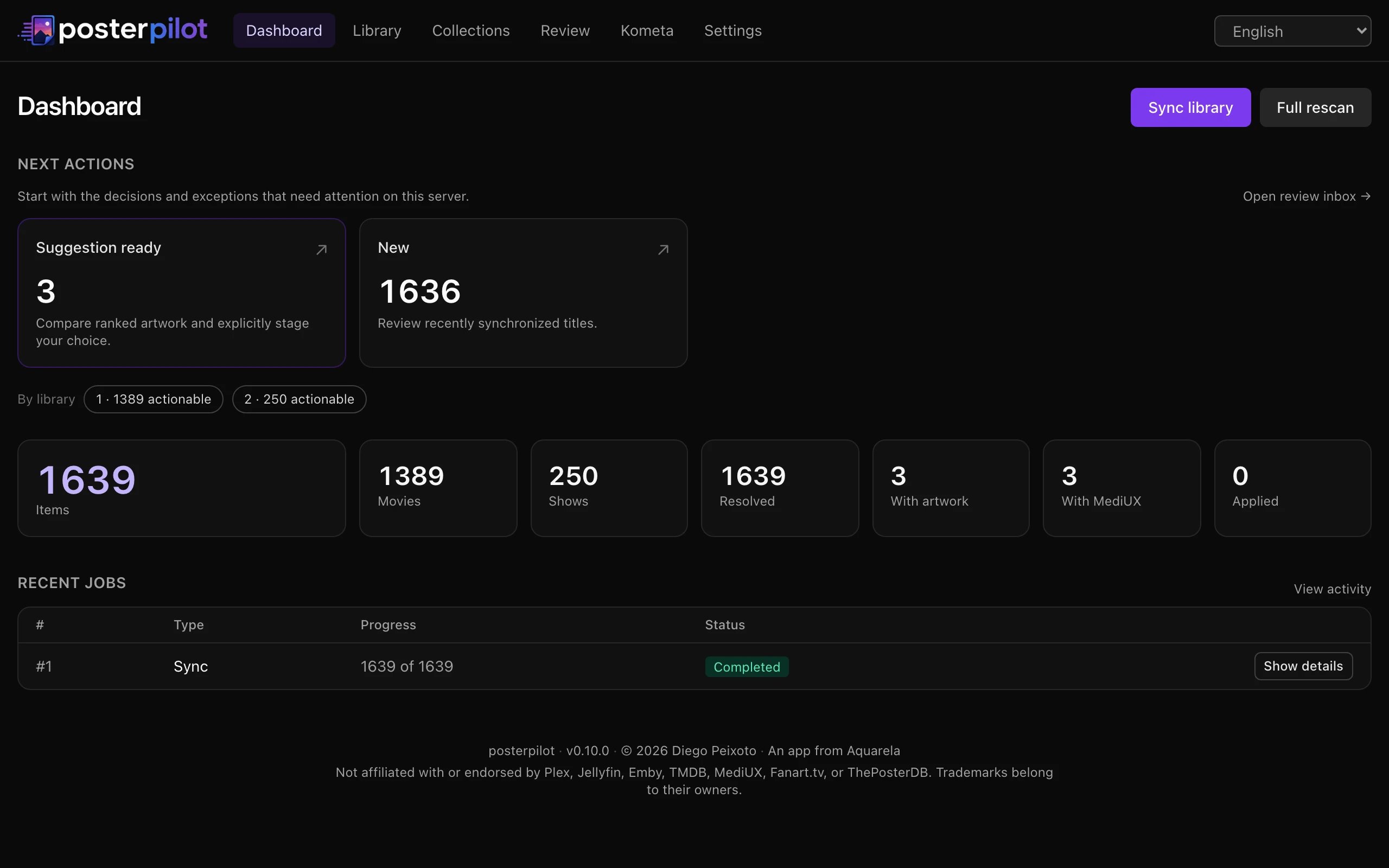
INCLUDED_SECTIONS— leave it empty to sync all movie and show sections, including ones you add later. - Run the sync from the Dashboard (the Sync button). It runs as a background job with live progress shown right there; the stat cards (items, movies, shows, resolved, with artwork, with MediUX, applied) climb as it runs.
Each item comes back with its title, year, type, external GUIDs (tmdb/imdb/tvdb when present), and current poster. An item with no external GUID is still listed but flagged as unresolvable for provider lookup rather than dropped.
Repeat syncs are incremental by default: PosterPilot compares each item against the media server’s last-modified timestamp and only re-resolves and re-enriches the ones that changed since the previous sync, so a routine rescan is much faster than the first. One category of item is deliberately exempt from that skip — an item whose stored TMDB identity contradicts the media server’s own movie/show type is always re-processed, so a stale mismatch cannot survive an incremental sync forever (see Correct a TMDB match). A full rescan that re-processes everything stays available from the Dashboard, and you can turn incremental syncing off entirely (see Configuration → Performance and tuning).
Work from the Review inbox
Section titled “Work from the Review inbox”Review is the fastest title-by-title workflow. It derives actionable states for new, unresolved, no-candidate, suggestion-ready, staged, partially failed, externally changed, ignored, and completed items. Filter by server/library/type/state/provider, search, choose a deterministic sort, or save the current filter as a named view. A separate artwork-coverage filter sits beside the state filter and answers a different question: state is where you are in your workflow, coverage is what actually happened at a destination.
Opening an item preserves the Review context and exposes previous, next, and return navigation. Compare current, suggested, and staged artwork per slot. Accepting a suggestion is explicit — nothing is staged on page load. Keyboard actions are listed on the page and do not fire while focus is in a form field or modal.
Apply and next first creates the ordinary exact preview, asks for confirmation, waits for the job and post-write verification, and advances only after every selected target succeeds. A skip, partial failure, or verification failure keeps you on the item with its job detail and retry action.
Correct a TMDB match
Section titled “Correct a TMDB match”Everything downstream — which artwork is even looked for, which Kometa entry is written, how two copies of one title are recognized as the same title — hangs off the TMDB identity PosterPilot resolved for an item. This section is about getting that identity right and repairing it when it is wrong.
Automatic matching stays inside the right namespace
Section titled “Automatic matching stays inside the right namespace”TMDB numbers movies and shows independently: movie 105 and show 105 are two
unrelated titles. The media server already knows which of the two an item is, so
PosterPilot treats that as authoritative and resolves only within that namespace.
- The GUIDs carried by an item are tried in a fixed precedence — a direct TMDB id first, then IMDb, then TVDB.
- A direct TMDB id is validated by reading it back from the expected endpoint: a show is looked up as TV, a movie as a movie. An id that only exists in the other namespace does not resolve.
- An IMDb or TVDB id goes through TMDB’s
findendpoint, and only the matching result bucket is accepted — the TV results for a show, the movie results for a movie. A hit in the other bucket is discarded rather than borrowed.
The practical effect is that a TV library can no longer resolve to films. A “not in this namespace” answer from TMDB leaves the item unresolved, which is a different outcome from a network or credential failure: the second leaves the item unresolved and unsynced, so the next sync retries it instead of accepting a wrong answer.
The normalization banner
Section titled “The normalization banner”Releases before that namespace guard could store a TMDB identity of the wrong kind, and fixing the resolver does not retroactively fix rows already in the database. So after upgrading, PosterPilot counts them and says so in a banner across the top of every page — “… legacy TMDB matches need normalization” — with a Normalize matches action and a note that the repair corrects movie/show identities without a full rescan and without applying artwork.
What the count includes is narrow and deliberate:
- Only items on the active server, whose stored TMDB media type contradicts the media server’s own type for that item.
- Not manually pinned items — a pin is your statement about the identity and outranks any automatic repair.
- Not copies that have since left their library.
The number is re-counted from the database every time it is shown, so restoring a backup or editing rows by hand needs no separate flag repair, and the banner disappears on its own the moment nothing is pending.
Normalize matches enqueues a repair job scoped to exactly those items. It re-resolves each one inside the correct namespace and re-enriches its metadata, and that is all — it does not apply artwork, does not touch staged selections, and does not walk the rest of the library. While the job runs the banner reports progress and links to it on the Dashboard; a job that ends failed, partial, cancelled, or interrupted turns the control into Retry normalization. Only one repair job per server may run at a time — starting a second names the job already holding the scope.
Why a full rescan is the fallback, not the repair
Section titled “Why a full rescan is the fallback, not the repair”The Dashboard’s Full rescan re-reads the complete server library: every item is reconciled, re-resolved, re-enriched, and its current artwork re-observed (anything changed on the server is flagged for review). It preserves originals and history and never applies artwork automatically. That is the right tool when you suspect the local cache has drifted as a whole — after restoring a backup, or after large-scale edits made directly on the media server.
It is the wrong tool for mismatched identities, for two reasons:
- PosterPilot can already name the affected items. The targeted repair touches only those rows; a full rescan pays for a complete pass over the library and a full round of media-server and TMDB requests to reach the same result.
- Waiting also works. A pending type mismatch is exempt from the incremental skip, so an ordinary sync re-processes those items when it next reaches them. The repair job is how you fix them now, not the only way they ever get fixed.
Reach for a full rescan when the question is “is my whole local copy still true?” — not when the answer is already a list.
Pin a match by hand
Section titled “Pin a match by hand”An unresolved or incorrectly matched item can be searched manually by title, year, and movie/show type. Results include the TMDB identity and disambiguating metadata.
Confirming re-reads that exact identity from TMDB immediately before anything is written, so a candidate that disappeared between the search and the confirmation is refused rather than pinned, and TMDB being unreachable leaves your current match untouched. A successful confirmation pins the identity, retires the candidates discovered under the old one, and records an audit event. No artwork is applied — run Find covers again to discover artwork for the new identity.
A pin is authoritative: syncs will not overwrite it and the normalization sweep skips it. Replacing or clearing it is likewise explicit. Clearing immediately retries automatic resolution from the item’s own stored IMDb/TVDB ids — the TMDB id column belonged to the pin, so only those independent ids are safe to reuse — and reports which happened: an automatic match was restored, no match was found, or resolution could not run. An item carrying neither id simply becomes eligible again, and a later sync can supply a fresh TMDB GUID. Every transition (pinned, replaced, cleared, resolved, unresolved) is kept in the item’s match audit trail.
Provider failures are isolated. A transient outage can retain that provider’s last-known-good candidates, visibly marked stale. A later successful empty result clears them instead of treating “no candidates” as an outage.
The library wall
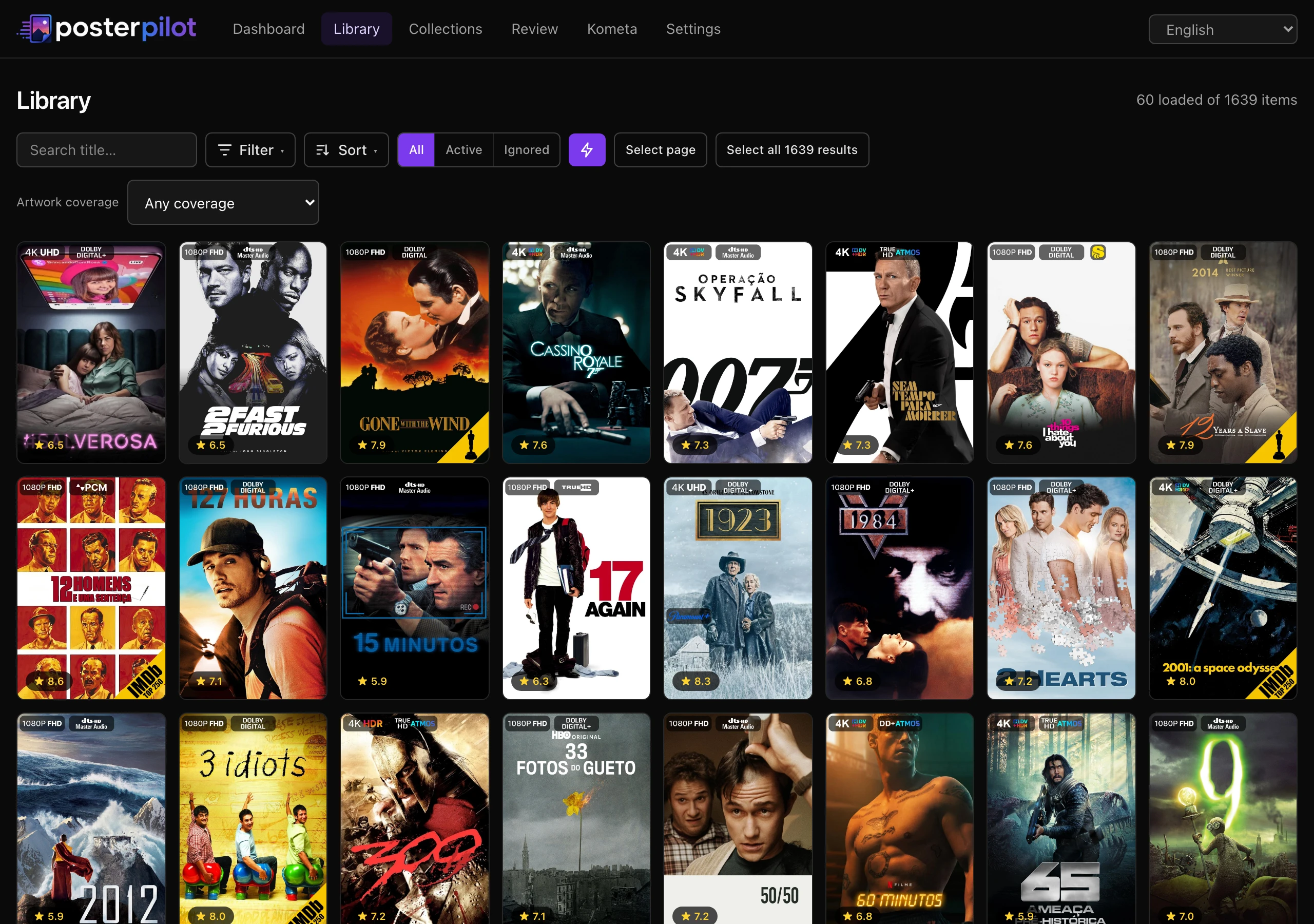
Section titled “The library wall”The synced library renders as a poster grid with a Notion-style toolbar. You can:
- Search by title.
- Filter from the Filter popover: media type (movie / show), minimum rating, genre, missing poster, any artwork availability, true MediUX availability, change state (unchanged / still on the default poster), and ignored state. The Filter button shows a badge with the number of active facets.
- Filter by artwork coverage — Applied on this server, Exported to Kometa, Needs artwork, or Coverage unknown. Review carries the same control, and the values mean the same thing in both places, so a link is portable. Read Artwork coverage before relying on them: they are claims about what PosterPilot did, not about whether a title has a poster.
- Sort from the Sort popover by title, release year, rating, runtime, most-recently-changed, or date added to the media server, with an independent ascending/descending toggle. The wall opens with the sort configured in Settings → Kometa & advanced (default: title); an explicit choice in the toolbar always wins.
- Each active filter and the sort show up as removable chips below the toolbar — click a chip’s ✕ to drop just that one, or Clear all to reset everything.
- Toggle auto-apply (the ⚡ button) for filter controls only: on, each filter change navigates immediately; off, filter changes wait for the toolbar’s Apply button. It never applies artwork. The choice is remembered.
- Ignore an item you want left untouched — ignored items are skipped by discovery, apply, and automatic selection, are visually marked on the wall, and can be filtered in or out from the Filter popover. Toggle it off again at any time to bring the item back into the workflow.
- See a spotlight banner — a backdrop for a recently-changed item above the wall once at least one cover has been applied.
Each tile surfaces the item’s rating and a status badge when any provider has artwork; the separate MediUX filter means specifically that MediUX returned a candidate. A changed badge remains distinct, with the title and year revealed on hover.
Find covers
Section titled “Find covers”Open an item to see its detail view: a backdrop hero with the item’s logo (or its title when no logo exists), rating, year, runtime (or season/episode counts for shows), genres, and overview, plus the top-billed cast.
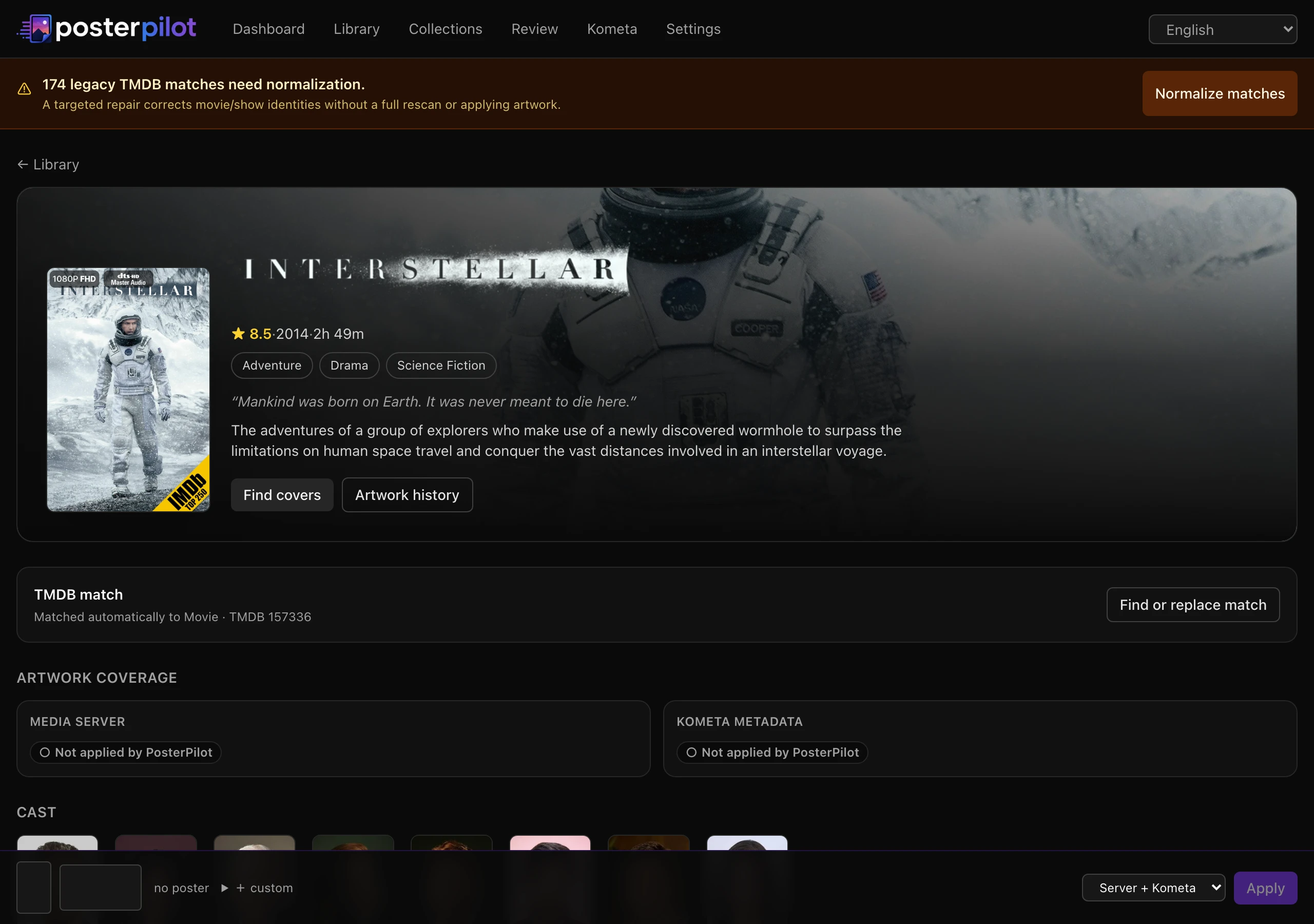
- If covers have not been discovered yet, use Find covers to run discovery for that item.
- Discovery fans out across all enabled providers and stores the union of their candidates, each tagged with its provider.
- Candidates are grouped first by provider, then by set. Each set shows its uploader attribution with the poster and backdrop together. For shows, the view also presents season-poster sets and title-card sets.
- Provider cards appear in the order you configured in Settings → Metadata & providers — not in the order discovery happened to finish, which records only which provider answered first. That order is presentation plus a tie-break between candidates that scored exactly equal; it never overturns an unequal score, so a sharper image from a provider you placed last still wins the suggestion. See Configuration → Provider order.
- Provider sections, individual set cards, and (for shows) season groups are collapsible. On first load the first provider and its first set are expanded — and so is the ThePosterDB group when it has results, since it arrives as a single flattened set — while everything else is collapsed; your collapsed/expanded choices persist in the browser across reloads and as you move between items.
- Each provider group header carries its own ⟳ re-search control
(“Re-search MediUX”, “Re-search ThePosterDB”, …). It re-runs discovery for just
that provider and bypasses the HTTP scrape cache, so you get genuinely fresh
results instead of the copy cached for
HTTP_CACHE_TTL_DAYS. The fresh run replaces that provider’s stored candidates; every other provider’s candidates are left untouched. - When suggested artwork is enabled, the highest-scored candidate for each slot is clearly marked for an explicit stage/accept action; it is not silently saved. Candidates are scored on provider quality, resolution, and aspect-fit; tune the weights — or turn the pre-selection off — in Settings (see Configuration → Performance and tuning).
You can stage a whole set (“use this set”), or take an individual poster from one set and a background from another — the two slots are independent.
Show more without loading everything
Section titled “Show more without loading everything”A blockbuster can carry hundreds of covers, and rendering them all at once is expensive whether or not you scroll that far. So each grid opens with 24 tiles, and a load more control reveals another 24 (or whatever is left) and says how many would still be hidden after it. 24 because it divides evenly into every grid the page uses — two columns for backdrops, four for title cards, eight for season posters — so a reveal never leaves a ragged half-row. The line beside the control always states the arithmetic: how many are shown, of how many, with how many hidden.
Each grid discloses independently: revealing more posters does not reveal backdrops, two sets from the same provider expand separately, and every season’s posters and title cards keep their own count. Undisclosed tiles are not rendered at all rather than lazily loaded, because a lazily-loaded image still costs an element.
Revealing more costs nothing over the network: the whole retained inventory for the item is already in the page. What the grid does not have is a way to reach past what PosterPilot kept. TMDB returns every image it holds, and ingestion applies a defensive ceiling of 200 candidates per artwork kind; when a grid sits at that ceiling, it says so — “…returned more artwork than PosterPilot keeps; this grid is not the full list” — instead of implying you are looking at everything that exists. See Configuration → Candidate inventory and load more.
Enlarge a candidate
Section titled “Enlarge a candidate”Every tile carries its own ⤢ enlarge control below the image, separate from the control that stages it. Enlarging is a look, never a choice: it stages nothing, persists nothing, and changes no slot.
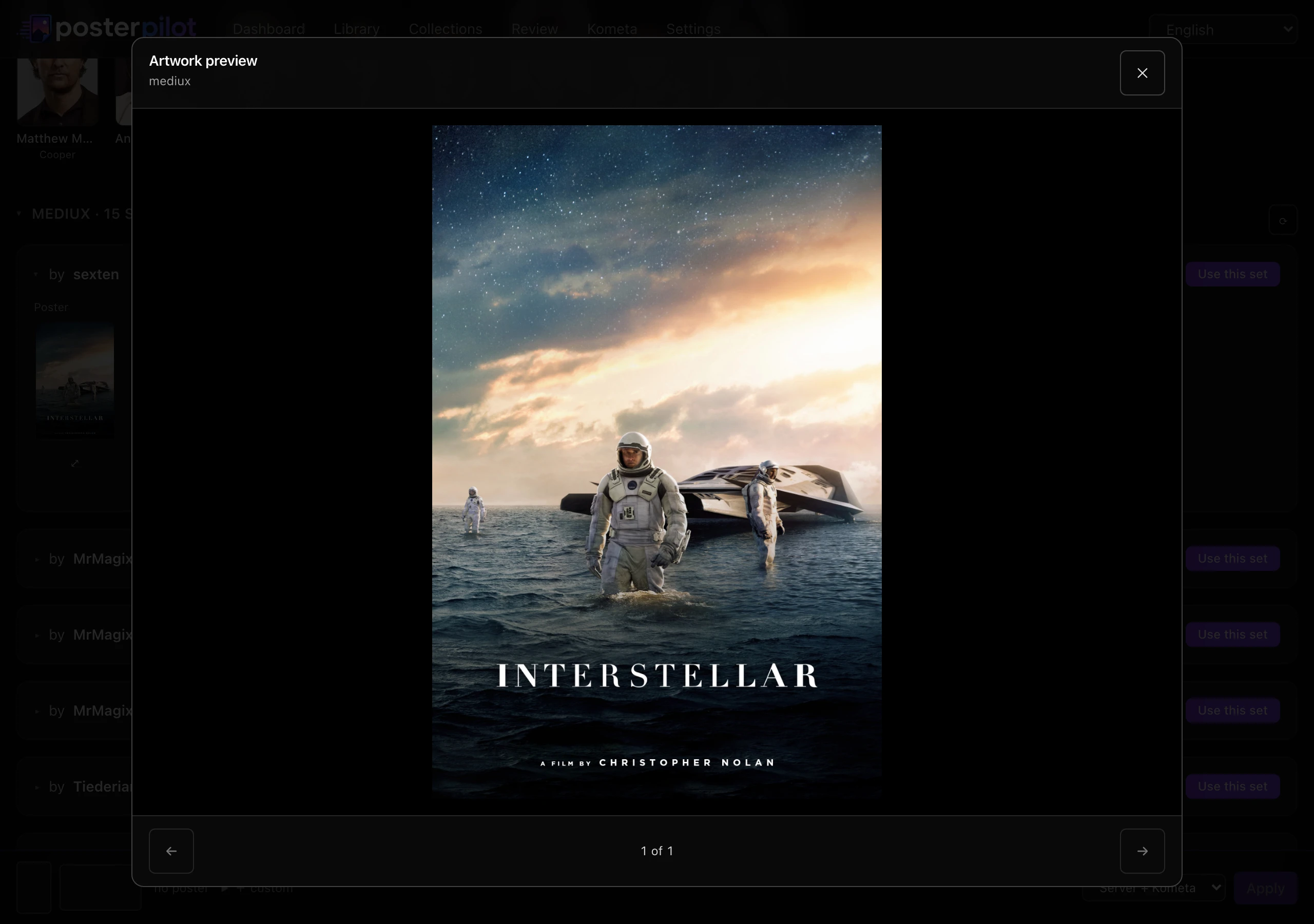
The dialog shows the canonical asset — the exact file that would be uploaded to your server or written into the Kometa YAML — complete and uncropped, with the provenance a bare image cannot convey: provider, pixel dimensions, and language where the provider reports one. Providers that never tag a language (MediUX, ThePosterDB) get no language line at all, because “no language tag” would describe the source rather than the artwork.
- ← / → or the arrow keys walk the sequence; Esc or the ✕ closes it and returns focus to the tile you opened it from.
- Your position in the sequence is shown between the controls and announced as it changes, and the controls stop at the ends rather than wrapping around — a Next that jumped back to the first would contradict the position you are reading.
- The sequence is exactly what is on screen: the same provider order, the same expanded sets, the same language filter, the same disclosed tiles. Next can never reach artwork the page itself is hiding.
- If the grid changes underneath an open preview — you revealed another batch, a background job finished — the dialog follows the artwork you were looking at. It only closes if there is nothing left to show.
- An asset that fails to load at full size says so, rather than showing the previous candidate’s image under the new candidate’s caption.
What browsing actually downloads
Section titled “What browsing actually downloads”Every candidate has a canonical asset — the file that would actually be applied — and some providers publish a smaller rendition alongside it. PosterPilot is deliberate about which one it fetches, and when:
- Grids request the optimized rendition wherever a provider offers one — TMDB
supplies a
w500poster and aw1280backdrop rather than the original — and route it through PosterPilot’s own thumbnail cache, so those bytes are fetched from the provider once and reused across page loads, across items, and across everyone using that instance. MediUX, Fanart.tv, and ThePosterDB publish no separate preview, so their tiles show the canonical URL — still through that cache, so browsing them repeatedly does not keep hitting the provider. - The enlarged preview and the apply path use the canonical asset, fetched straight from the provider. The preview deliberately bypasses the thumbnail cache: that cache exists to hold grid-sized images, and filling it with originals would evict the thumbnails it is there to serve.
The enlarged image only exists while the dialog is open, so a grid of a hundred TMDB tiles downloads a hundred thumbnails and zero originals until you ask for one. For the providers that publish no rendition, the grid’s single cached fetch is the only one however often you revisit the item. Cache lifetime and size are yours to tune — see Configuration → Performance and tuning.
Artwork language
Section titled “Artwork language”When a TMDB artwork language is configured, the item page filters the grids to it and says so above them — naming the language, and how many covers it is hiding in other languages — with a Show all languages toggle that is local to the page and never edits your saved preference. If nothing matches for this title, the page says how many covers exist in other languages and offers the same escape hatch instead of showing you an empty grid.
The preference governs TMDB artwork only, and the reasoning is worth knowing before you set it: see Configuration → TMDB artwork language.
Season and episode artwork
Section titled “Season and episode artwork”For a show, artwork is staged per slot, so the show cover, each season’s poster, and each episode’s title card are independent of one another:
- A set’s artwork is organized into a show group (poster and background) and one group per season. Each season group holds that season’s poster and its episodes’ title cards. (A season background slot exists in the model but is not shown, because no provider currently sources season backgrounds.)
- Selecting a candidate inside a season or episode slot stages just that slot, without touching the show-level or any other slot. Re-selecting the candidate already staged in a slot clears it again.
- Use this set fills every slot the set covers at once — show, each season, and each episode — matched by season and episode number. You can then override any single slot and keep the rest of the set staged.
The sticky builder summarizes everything currently staged — the show poster/background plus counts of staged seasons and episodes — and a single Apply writes all of it in one action (see Apply a cover).
Apply a cover
Section titled “Apply a cover”Apply a staged selection with the method you choose, selectable per apply action
with a configurable default (DEFAULT_APPLY_METHOD, default both). Every method
first creates an exact preview. Review its server/Kometa operations and skips, then
use the separate confirmation action. The expiring single-use plan is bound to the
selection, destination, current artwork, and source state:
- Media server (direct). Captures the prior slot, uploads through the active named provider, locks where supported, rereads the result, and records exact or best-effort verification according to that instance’s capabilities.
- Kometa export. Writes Kometa/PMM-compatible YAML —
url_poster(andurl_backgroundwhen a background is staged) — into the configured Kometa output directory, without contacting the media server. Movies use TMDB ids with IMDb fallback; shows use TVDB ids with IMDb fallback. Your existing Kometa instance applies the covers on its next run. Re-applying updates the entry in place rather than duplicating it. - Both. Performs the direct upload and writes the Kometa YAML, recording each outcome independently so a partial failure is visible.
A warning-free plan applies in a single click: when the preview carries no skipped targets and at least one write, PosterPilot issues the confirmation for you in the same action. Any skip brings back the explicit confirmation step, and Apply and next always keeps its dialog.
A single apply writes every staged slot — show, seasons, and episodes — with
the chosen method(s). For direct upload, PosterPilot resolves each season and
episode child on the media server by number and uploads to it; a staged slot whose
season or episode has no matching child on the server is skipped and reported
rather than failing the whole apply, and one child’s failure never aborts the rest.
The Kometa export nests staged season posters under seasons: (keyed by season
number) and staged episode title cards under episodes: (keyed by episode number),
alongside the show-level url_poster / url_background. A season background is
applied via the direct method only — it is omitted from the YAML.
Every destination and slot — success or failure — is recorded in the append-only artwork timeline with safe provenance, prior state, outcome, verification, and timestamp. If a bound input changes after preview, confirmation writes nothing and requires a new preview. Read Safety, verification, and undo for the full contract.
How Kometa consumes the export
Section titled “How Kometa consumes the export”PosterPilot writes posterpilot-movies.yml and posterpilot-shows.yml into its
Kometa output directory. Movie entries use TMDB ids, falling back to IMDb when
TMDB is unavailable; show entries use TVDB ids, falling back to IMDb when TVDB is
unavailable. Wire the matching file into each
Kometa library under metadata_files. The Kometa manager
can maintain those references and explains why the physical output path is
separate from Kometa’s runtime-visible file: prefix.
Artwork coverage
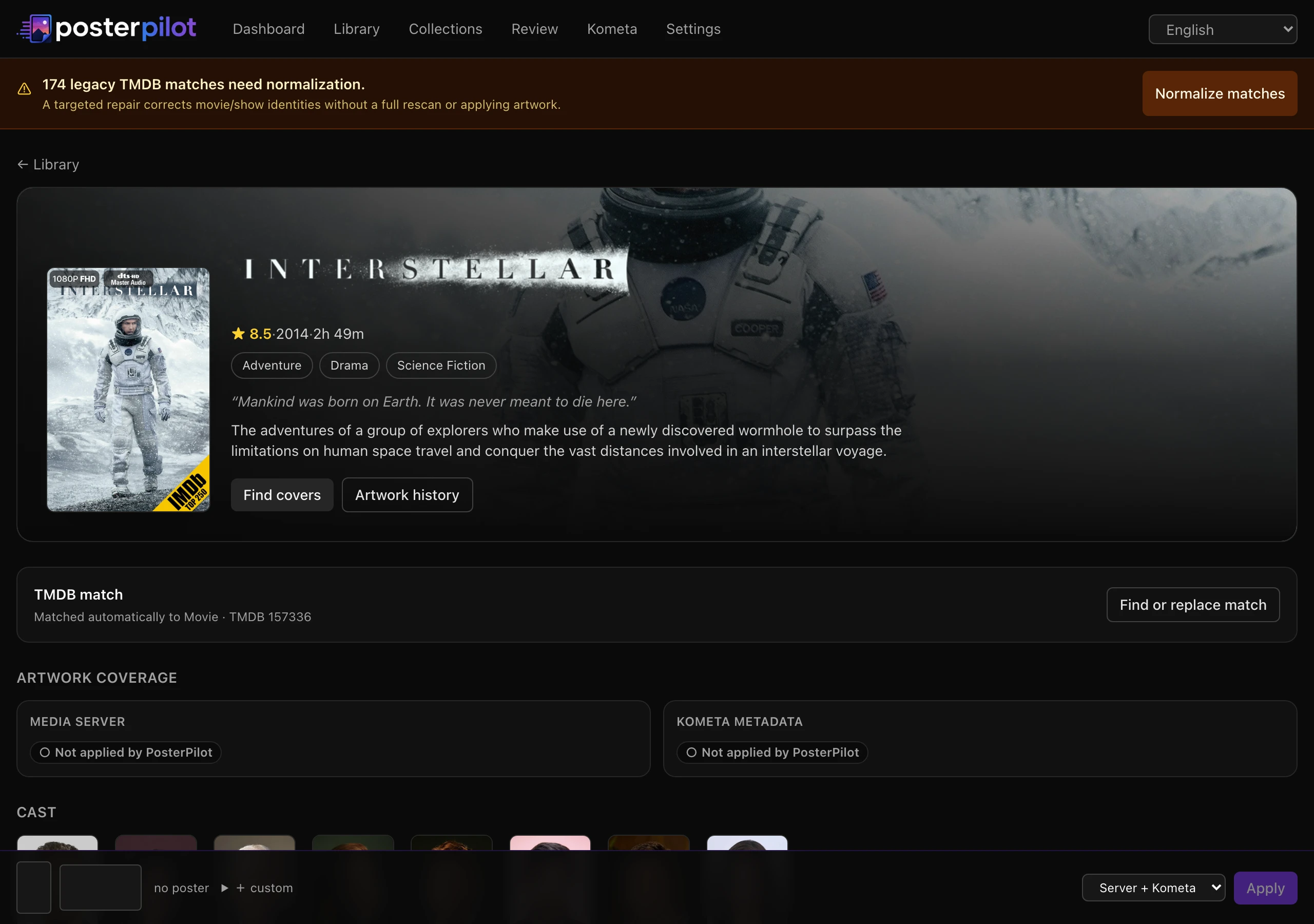
Section titled “Artwork coverage”The artwork timeline answers what did PosterPilot do. Coverage answers a different question — what is true right now — and the two can disagree, which is exactly why they are separate. Every item page carries an Artwork coverage panel under the hero, and both the library wall and Review can be filtered by it.
Two destinations, never merged
Section titled “Two destinations, never merged”Coverage is always reported per destination, in two panels side by side:
- Media server — artwork PosterPilot uploaded to Plex, Jellyfin, or Emby.
- Kometa metadata — entries PosterPilot wrote into its Kometa YAML files.
The panels are never folded into one verdict, and their counts are never added together. This is the distinction the whole panel exists to protect:
The same rule governs copies of a title. A film that exists on two servers, or twice
on one server because it sits in both Movies and Movies 4K, is several copies with
independent evidence — a poster applied to one proves nothing about the other. When a
title has more than one copy, the header reports the count per destination
(“1 of 2 copies covered”), never a single combined figure: one copy applied to a
server plus a different copy exported to Kometa is not “2 of 2”.
Each slot inside a panel — the poster, the background, each season, each episode — keeps its own status too. A show whose poster is verified on the server and whose episode title cards are not says exactly that, rather than resolving to one badge.
What each state means
Section titled “What each state means”| State | Meaning |
|---|---|
| Applied on this server | We wrote it, and the fingerprint we expected still matches what the server serves right now. This is the only state that is positive, verified proof at a media server. |
| Exported to Kometa | The current metadata file carries this slot’s URL. A file on disk — see the caution above. |
| Applied, not verified | We wrote it, and the current server state could not be checked. History exists; proof does not. |
| Changed outside PosterPilot | We wrote it, and something has since replaced it. Its own state, not a synonym for anything else. |
| Not applied by PosterPilot | A reliable observation found no evidence that we put artwork here. |
| Coverage unknown | We could not observe reliably — an unreadable Kometa file, a media server we could not reach, incomplete history. |
Three of those wordings are load-bearing, and reading them loosely will mislead you:
“Not applied by PosterPilot” is not “has no artwork.” It is a statement about what we did, never about what your server holds. A title you postered by hand in Plex years ago reads as not applied here — and it has a perfectly good poster. There is deliberately no coverage state, and no filter value, that claims a title has no artwork, because PosterPilot cannot know that.
“Changed outside PosterPilot” is its own answer. Something replaced our artwork — Plex’s own agent, another tool, a person. Reading that as “missing” and re-applying means never finding out what keeps overwriting your library.
A failed read is “unknown”, never “not applied.” “We could not check” and “we checked and it is not there” are different facts, and conflating them is how a fully covered library gets reported as empty and invites you to re-export everything. So an unreadable Kometa file, a directory PosterPilot cannot resolve, or history it could not read in full all produce unknown — a missing file, which is a reliable observation, does not.
Filtering by coverage
Section titled “Filtering by coverage”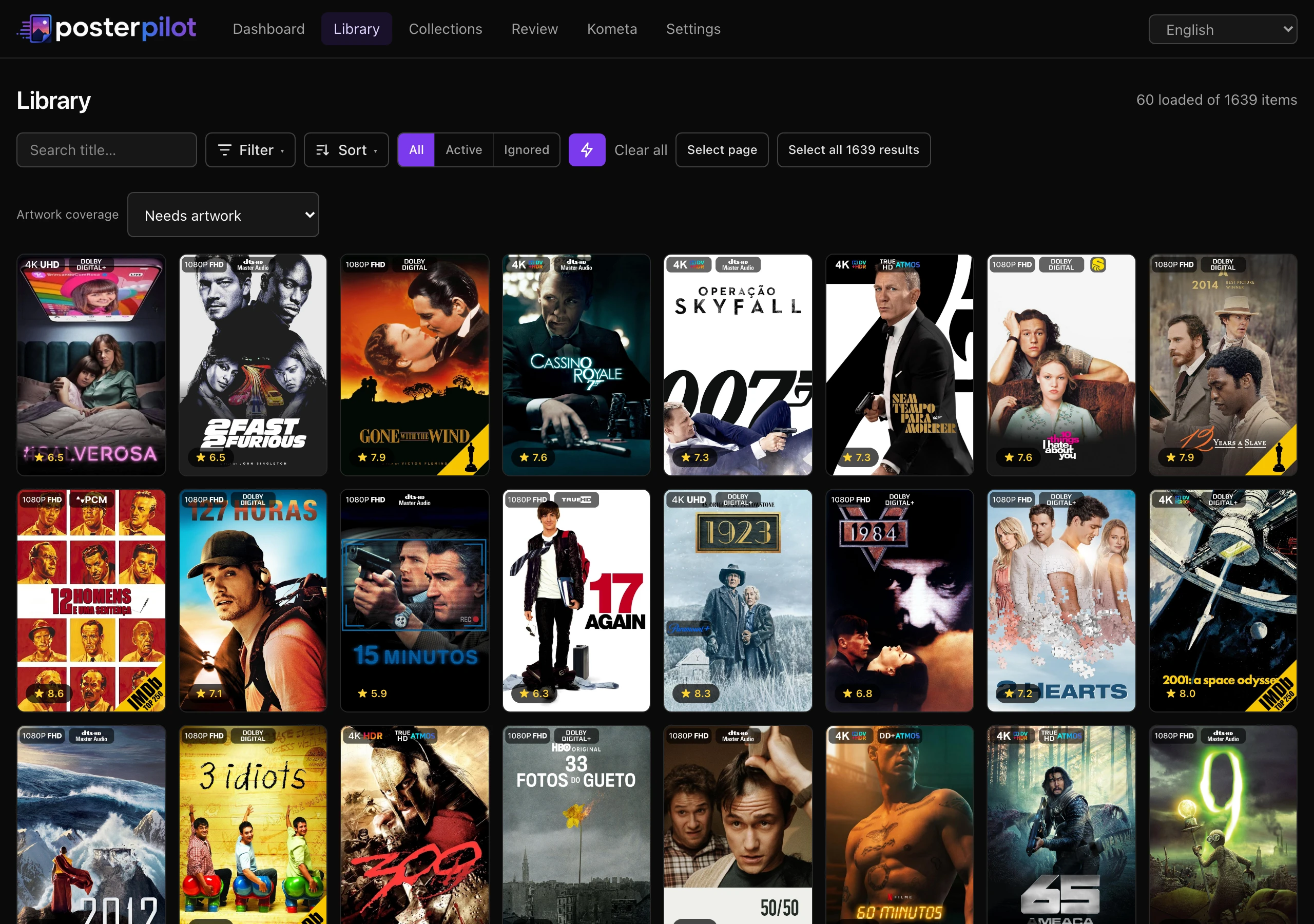
The library wall and Review share one Artwork coverage control:
- Applied on this server — at least one slot is verified on the active server.
- Exported to Kometa — at least one slot appears in the current metadata file.
- Needs artwork — covered at neither destination. Titles PosterPilot has never touched match this, which a status lookup alone could not achieve.
- Coverage unknown — at least one slot whose evidence is indeterminate: Coverage unknown at either destination, or Applied, not verified on the server.
Note the “at least one slot”: a show with a poster applied and no title cards matches Applied on this server. The filter finds titles worth opening; the item page’s panel is where the per-slot truth lives. Coverage is scoped to the server the copy belongs to, so switching the active server changes the answers. When a filter matches nothing, the empty state says so and offers a one-click return to Any coverage, rather than leaving you on a blank grid wondering which control emptied it.
How coverage stays current
Section titled “How coverage stays current”Coverage is a projection rebuilt from three sources it does not own: the append-only revision ledger, the current per-slot observation of your server, and the Kometa files on disk. It is re-derived after an apply, an undo, a sync, and a Kometa migration or config write — and, because nothing notifies PosterPilot when someone re-posters a title directly in Plex, an item page whose evidence is older than 15 minutes re-observes the server as you open it.
Two consequences follow from that design, and both are intentional:
- A refresh never fails the thing that triggered it. An apply that succeeded and then could not update the projection is still a successful apply. The cost is staleness, which the next trigger repairs.
- Reconciling coverage changes nothing else. It writes no artwork, no YAML, no match, and it never marks anything reviewed. Where you are in your queue is your statement; what is true at a destination is PosterPilot’s — and one must not edit the other.
Artwork history and undo
Section titled “Artwork history and undo”The item timeline separates direct-server and Kometa outcomes for show/movie, season, and episode slots. Use an available timeline action to preview undo for one revision, a season, or the item. The preview lists exact restorations and unavailable slots; confirmation restores only that frozen scope, verifies where supported, and appends a new undo revision instead of deleting history.
A partial undo keeps successful restorations and reports failed slots independently. An original image that could not be captured is labelled unavailable rather than presented as safely restorable.
Custom sets
Section titled “Custom sets”The item detail view has a persistent, sticky builder with a poster slot and a background slot that together form a custom “set”:
- Clicking a poster candidate routes it to the poster slot; clicking a background candidate routes it to the background slot — automatically, by kind.
- Each slot can also be filled from a pasted image URL or an uploaded image file. File upload itself uses preview then confirmation and validates type/size.
- Applying the builder applies both staged pieces in one action via your chosen method.
Bulk actions
Section titled “Bulk actions”Select the current page or all matching results, clear the selection, and run discovery and/or apply as a background job. All-matching materializes the complete server-side filter result rather than only loaded cards, and changing the query invalidates that selection.
Automatic selection scores every candidate across all enabled providers — combining provider quality, resolution, and aspect-fit — and picks the highest-scored poster (and a background where available) for each item, the same scoring that drives the suggested pre-selection on the item view. Ignored items are left out of the selection.
Before a bulk apply runs, an exact preview freezes target IDs, selected candidates, uploads, Kometa exports, current-state identities, and skips. It may perform non-destructive discovery to build the plan, but confirmation executes only the frozen operations. Bulk apply then processes items concurrently (bounded by the Apply concurrency setting), so large batches finish faster, with the same live progress and cancellation.
FUN experiments
Section titled “FUN experiments”FUN is an opt-in section for library experiments (enable it with the FUN
toggle in Settings → Kometa & advanced, or FUN_ENABLED=true). Until then it
stays completely hidden — no nav entry, and its page returns 404.
The hub includes an up-to-three-choice shareable picker (filters, presets, blind and capsule modes), Poster Match, an ambient gallery, and two/three-movie duration-budget sessions. Results never apply artwork; Poster Match only stages its winner. Reduced motion starts the gallery paused. See FUN experiments and collections.
Collections
Section titled “Collections”Collections groups local members from native server or TMDB collection identity, strictly inside the active server. Detail pages show provenance, unavailable members, current/staged artwork, explainable consistency, coordinated family coverage, per-member overrides, and a one-action re-search across every member. Staging a family never applies it. See FUN experiments and collections.
Dashboard and jobs
Section titled “Dashboard and jobs”The Dashboard is home base. It shows actionable Review/job cards, the Sync button, and any running jobs with a live progress bar (updating over Server-Sent Events, no refresh needed) that you can cancel. The nav badge next to Dashboard reflects how many jobs are active. Below that, a Recent jobs table lists the latest jobs with type, processed/total counts, result summary, attempts, and final status. Terminal failures expose sanitized per-target detail and retry for eligible failed work only. There is no separate Jobs page — live progress and recent history both live on the Dashboard.
Activity log
Section titled “Activity log”The granular event log lives under Settings → Activity. Every operational event is recorded there (and mirrored to the container console and a rotating file log). You can:
- Filter by level — All / Info / Warn / Error.
- Page through history with Load more.
- Clear activity to wipe the in-app table (this does not delete the on-disk log file).
The table is capped at EVENT_RETENTION rows (default 2000); older rows are
pruned automatically. See
Configuration → Logging and activity log
for the file log and retention details.
PosterPilot is an independent project, not affiliated with or endorsed by Plex, Jellyfin, Emby, MediUX, Fanart.tv, TMDB, ThePosterDB, or Kometa. Trademarks belong to their respective owners. This product uses the TMDB API but is not endorsed or certified by TMDB.