

Multi-server administration and migration
PosterPilot can manage multiple named Plex, Jellyfin, and Emby instances while keeping libraries, items, jobs, revisions, collections, review state, and schedules strictly separated.
Before upgrading an existing installation
Section titled “Before upgrading an existing installation”- Stop artwork mutations and let active jobs finish.
- Back up the complete
/datavolume, includingposterpilot.db, WAL files if present, artwork snapshots, backups, and.app-key. If your current version has application backup management, create and validate a manual backup as well. - Record the current server type, URL, and whether its credential comes from the
environment or Settings. Keep the same
APP_SECRETor.app-keyavailable. - Pull the new image and restart normally. Do not create a blank database or run manual SQL migrations.
What the migration does
Section titled “What the migration does”The database migration creates one protected named instance, Default server,
and assigns existing server-owned rows to its stable legacy-default scope. On
startup, the effective legacy connection (environment values still take precedence)
is materialized into that instance and selected as active.
The migration is transactional and idempotent. Existing item IDs, candidates, selections, ignores, jobs, revisions, history, and cached libraries remain in place; a destructive resync is not required. A fresh unconfigured installation creates no fake connection and continues to setup.
Post-upgrade checks
Section titled “Post-upgrade checks”After startup:
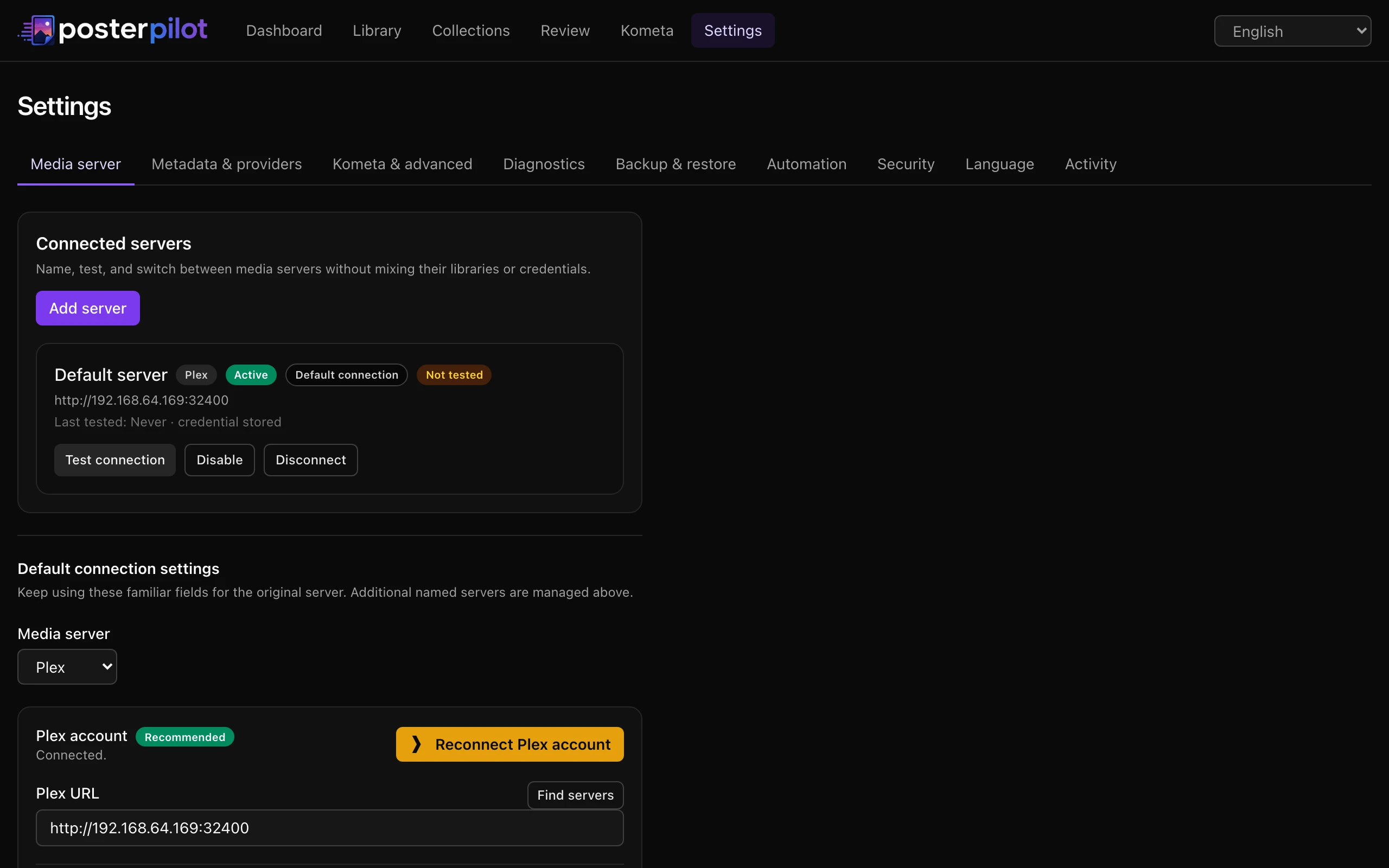
- Open Settings → Servers and confirm Default server has the expected type, URL, credential-set indicator, and active badge.
- Run its connection test and then Settings → Diagnostics.
- Open Library, Review, Collections, Dashboard/jobs, and an item timeline. Counts and history should match the pre-upgrade installation.
- Confirm the selected libraries and Kometa Plex binding.
- Run an incremental sync. Use full rescan only when you intentionally want every source item reread; it preserves revision history.
If migration or decryption cannot complete, stop the new container and restore the pre-upgrade data volume or use the validated application restore flow. Do not keep running against a partially copied database.
Add and switch servers
Section titled “Add and switch servers”In Settings → Servers, choose Add server, enter a unique name, provider type, base URL, and provider-appropriate reusable credential, then test before adding. Plex uses a token; Jellyfin/Emby use an API key or access token. Stored secrets are never returned to the browser.
When at least two enabled instances exist, use the shell switcher or Make active. Server-scoped pages reload for that instance. Library filters and saved review views belong to their server and are not silently reused across an invalid scope.
Jobs and schedules retain their named server. Independent jobs on different servers may run concurrently; overlapping work on one server is deduplicated or blocked. Capabilities are instance-specific, so a slot available on Plex may be unavailable on a Jellyfin/Emby version.
Kometa binding
Section titled “Kometa binding”Kometa is Plex-specific. Set KOMETA_SERVER_INSTANCE_ID or choose the named Plex
binding in Settings. Preview and confirmation validate that binding. Selecting a
Jellyfin/Emby instance, or silently borrowing another Plex instance’s credential,
is rejected.
Cross-server artwork application
Section titled “Cross-server artwork application”Cross-server apply is always explicit. A destination is eligible only through an exact shared TMDB, IMDb, or TVDB identifier; title similarity is never enough. The preview lists each destination server/item, capability decision, slot, current state, selection, and skip. Confirmation is bound to the full plan, and each server gets independent revisions and verification results.
The normal single-server Apply action never propagates to another server. Where the current UI does not expose cross-server selection, the exact preview/confirm API is intended for controlled integrations; do not emulate it by changing the active server between preview and confirmation.
Disable, disconnect, or purge
Section titled “Disable, disconnect, or purge”- Disable blocks new manual and automatic mutations but retains credentials, cached data, and history.
- Disconnect removes the stored credential, disables schedules, and keeps the scoped records as history. It requires confirmation.
- Permanent purge is available only after disconnect. It first shows exact impact counts and backup guidance, then requires a separate unchanged-plan confirmation. Active mutating jobs block it. Other servers are unaffected.
The migrated protected default is labelled Legacy and cannot be edited or purged through the ordinary destructive flow. This prevents an upgrade from silently deleting the original scope.
Before any purge, create a backup and inspect the impact on items, jobs, revisions, collections, schedules, and snapshot files. See Automation and recovery for backup/restore and Configuration for environment precedence.
PosterPilot is an independent project, not affiliated with or endorsed by Plex, Jellyfin, Emby, MediUX, Fanart.tv, TMDB, ThePosterDB, or Kometa. Trademarks belong to their respective owners. This product uses the TMDB API but is not endorsed or certified by TMDB.